
Members and groups
Invite people, choose the least-privileged Tenant or Workspace role, and use groups to keep access understandable.
Before you begin
Agree on the least-privileged role needed for each person and whether a group is a better long-term boundary. Review existing access before adding a broad role. Tenant roles apply to every current and future active Workspace in the Tenant, so choose a Tenant role only when that breadth is intended.
Invite form
The app asks for Email, Scope, and Role, then explains the selected scope's roles before enabling Send invite.
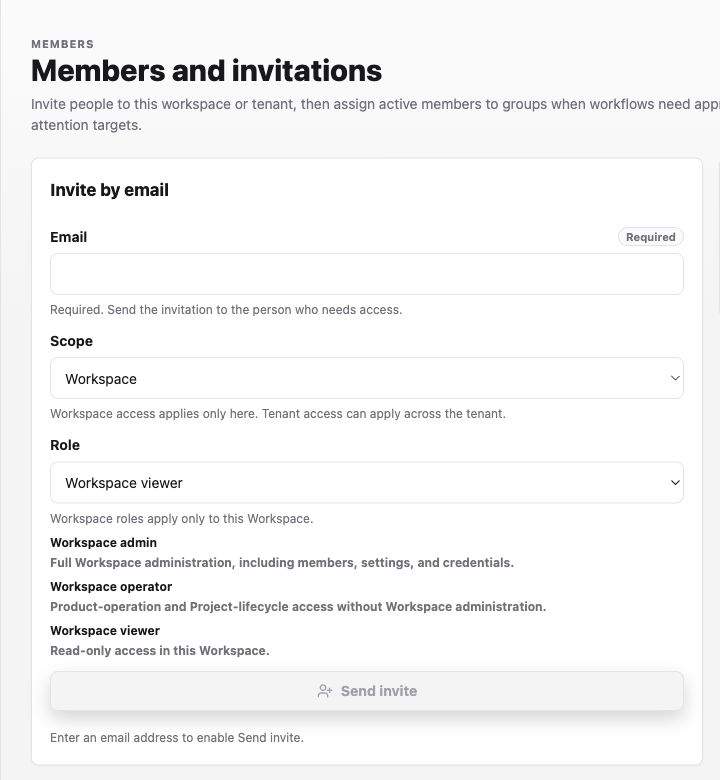
For a reviewer who only needs to inspect one workspace, use an address such as reviewer@example.com, choose Workspace, and start with Workspace viewer. Elevate to Workspace operator only if that person must operate project work, or Workspace admin if they must administer workspace members, settings, or credentials.
Procedure
- Open Settings > General > Members in the Labor0 app.
- Enter the person's Email and choose Workspace or Tenant in Scope.
- Choose the least-privileged Role. New Tenant invitations default to Tenant Viewer. Review the selected role and elevate explicitly to Tenant Operator or Tenant Admin only when broader access is required.
- Select Send invite once and confirm that the address appears under Invitations with its scope, role, and current state.
- After acceptance, confirm the person appears under Current members.
- Create or update a group when several active members need the same approval or attention pattern.
Expected result
A sent invitation appears as pending until accepted, then the active member appears with the selected access. An expired invitation is labeled Expired and must be reissued. If the pending role is wrong, cancel and reissue it; editing the pending role in place is not supported.
Permission guidance
Tenant roles are inherited by every current and future active Workspace in the Tenant:
- Tenant Viewer is read-only.
- Tenant Operator can perform product operations and create, update, archive, and restore Projects. It cannot administer Workspace or Tenant settings, members, UserGroups, credentials, or tenant-wide billing.
- Tenant Admin retains full Tenant and inherited Workspace administration, including members, settings, credentials, billing, and all Workspaces.
Direct Workspace roles can elevate inherited Tenant access for one Workspace, but they cannot reduce it. Use a direct Workspace role when a person needs additional access in that Workspace only; do not use it as a way to narrow a Tenant role.
Workspace-level usage visibility is separate from tenant-wide financial details. A permitted Workspace user may see usage for that Workspace, while tenant-wide financial details remain Admin-only.
Membership and group administration is restricted. A group should simplify access, not become a way to bypass a project’s ownership boundary.
The app preserves a final Tenant Admin so Tenant administration cannot be left without an administrator.
Pending invitation roles are immutable. If the role is wrong, cancel the pending invitation and issue a new one with the intended role.
If an invite is not accepted
Symptom: the invitation remains pending or cannot be accepted. Likely cause: it expired, the recipient account differs, or the workspace changed. Safe recovery: inspect the app state and send a fresh invitation through the app.