
Run your first task
Start a small task, inspect its plan, answer requests, and confirm the result safely.
Before you begin
Choose a change that is narrow enough to review. Confirm the project repository and runtime credential, and decide who can approve execution.
The New task page is project-scoped. If the workspace has no project, the app shows this prerequisite instead of a prompt form:
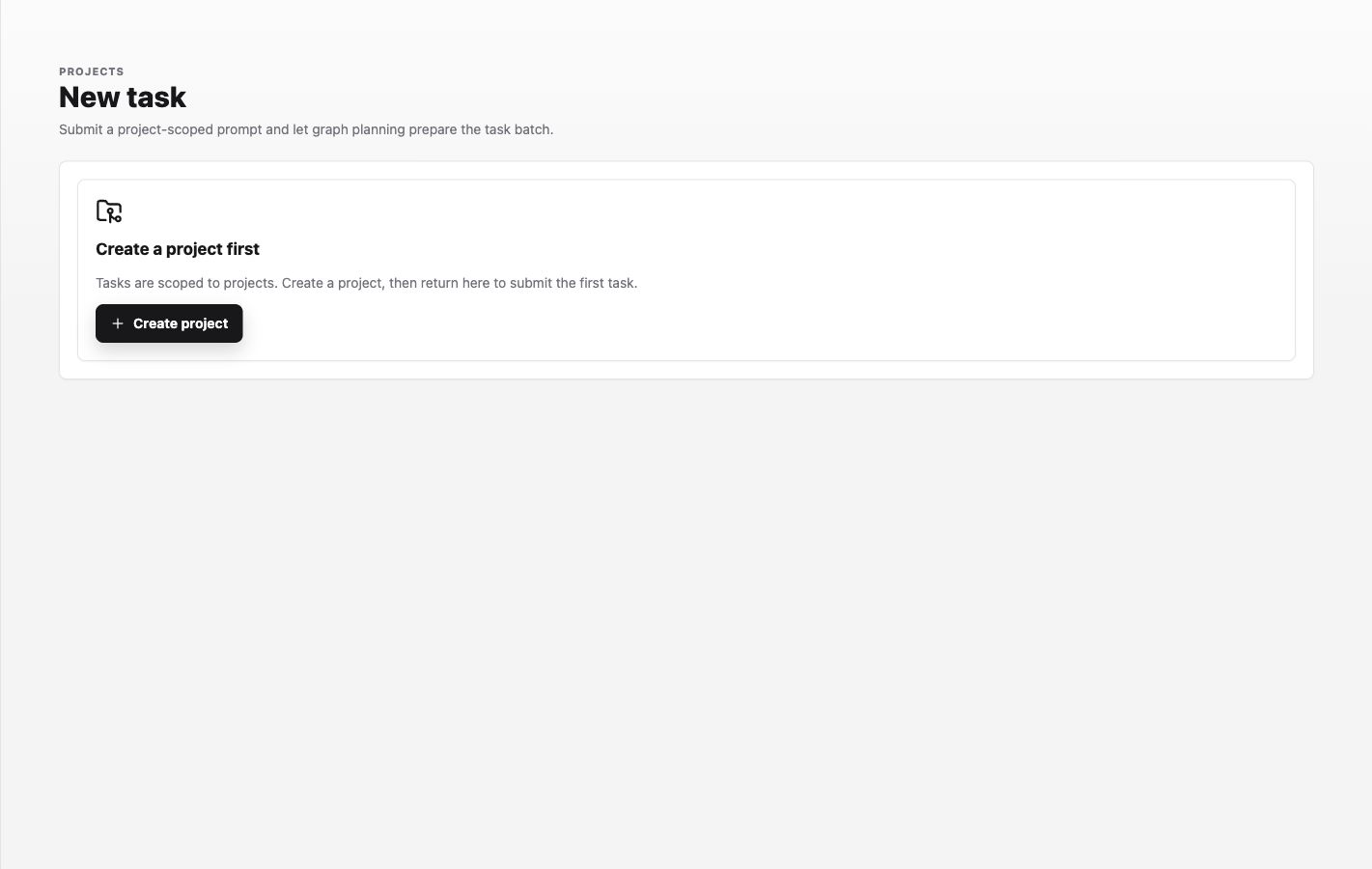
After a project exists, the page adds a Project selector, required Prompt, optional Task images, and Advanced settings. Advanced settings contain Agent, Model, Reasoning effort, Fast mode, Runner selection, and Require plan approval before implementation.
To use a local runner, install the complete CLI bundle and follow Set up and run the Labor0 CLI first. Auto prefers an eligible active local runner but may use hosted fallback. An active online CLI-managed runner does not currently enable Local only because Labor0 cannot confirm readiness for the selected coding-agent runtime. Local only never falls back to hosted execution. If hosted fallback is unacceptable, do not submit the browser task with Auto, because hosted work may begin before final attribution is available; stop before retrying and follow Manage and troubleshoot the Labor0 CLI. Review Pricing and usage for eligibility and cost terms. For guaranteed nonpublication during repository analysis, set every repository binding the task will use to Read-only, select Hosted only, and verify that Hosted only is selected before submitting so the task cannot use a local runner with alternate Git or SSH credentials.
Before submitting a repository-changing task, inspect every repository the task will use in the Repositories guide: open the project's visible Repositories item and confirm each repository's Read-only or Read-write access and Auto PR status. Repository access policy can prevent publication even when the prompt requests a commit or push. Publication is decided per repository; when no existing pull request is applicable, that repository's Auto PR setting determines whether Labor0 creates a pull request automatically or initially publishes only a branch.
Changing these project-wide defaults requires Workspace Operator or above. Viewers can inspect the settings but cannot save changes; ask a project or workspace Operator or Admin to make the update. Viewers also cannot submit the project task; a Workspace Operator or above must select Submit task after the settings are ready.
These are project-wide defaults for subsequently created coding tasks and sessions. Before changing them for a one-off repository-analysis task, record the prior values and coordinate with the project owner or affected teammates. If you change a repository binding to Read-only, that is also a project-wide change rather than a setting for only the new task; check for in-flight work, coordinate with affected teammates, and restore the prior access after the analysis, or use a separate project or repository binding. When an existing binding is Read-write, use the repository guide's Detach, Attach from catalog, and Read-only controls to replace it, then reverse those controls to restore the recorded access. If Require plan approval for coding sessions is not enabled under Project settings > Plan mode, enable it, select Save plan-mode defaults, and confirm the setting is enabled. If Approve per-task coding plans automatically by default is enabled, disable it, select Save coding-plan auto-approval, and confirm the setting shows manual approval before selecting Require plan approval before implementation. Otherwise the plan may be approved automatically and implementation or publication can begin before you can choose Request changes or Terminate task. After the task, first restore the recorded automatic-approval value and select Save coding-plan auto-approval while plan approval remains enabled; then restore the recorded plan-approval value and select Save plan-mode defaults, when safe and coordinated.
Repository publication for project task-graph work: When Labor0 executes work that changes repository files in a Read-write repository, wording such as “do not commit,” “do not push,” or “do not create a pull request” may constrain the requested content, but it cannot disable that repository's configured publication outcome. Required commits and pushes still occur when the repository access policy permits publication; an existing pull request is updated when applicable, automatic pull requests create a non-draft pull request, and disabled automatic pull requests initially publish to a remote branch created for the task. A task using multiple repositories can therefore have a different publication outcome for each repository. The result is that read-only work does not publish changes. Not every task creates a pull request. For non-repository questions, use a clearly read-only conversation or analysis surface such as Workspace Chat · Beta; it cannot inspect attached repositories. For repository analysis, enable Require plan approval for coding sessions, save the plan-mode defaults, disable automatic coding-plan approval, save that setting, and select Require plan approval before implementation before submitting a project-scoped task. Plan review is a review workflow, not a hard publication-prevention control for a Read-write repository. A Read-only binding alone is not a hard nonpublication boundary for a local runner that can inherit alternate Git or SSH credentials; guaranteed nonpublication requires an isolated execution environment without alternate write credentials, or another enforced nonpublishing surface. Then review the Plan and choose Request changes or Terminate task before implementation instead of relying on a publication prohibition in the prompt.
Example prompt
Paste a bounded request like this into Prompt:
This example states one outcome, defines the boundary, and gives the agent observable completion checks. Replace the file and commands with values that are true for your repository.
Procedure
- Open New task in the Labor0 app and choose the intended Project.
- Enter the request in Prompt. Attach an image only when it materially explains the change, and describe what the agent should inspect in it.
- Open Advanced settings, choose the intended Agent and Runner selection, and enable Require plan approval before implementation for this first run.
- Select Submit task once. Labor0 prepares the task batch; it does not treat the button click as approval to implement when plan review is enabled.
- When the session shows Waiting for approval, inspect task or session details. If you selected Local only or the run used a local runner, confirm the final Local runner attribution before continuing. If you selected Hosted only or the run fell back to hosted execution, confirm the expected hosted attribution instead. Then open Plan review and compare the proposed files, steps, dependencies, and checks with the request.
- Select Approve only when the plan stays inside the boundary. Use Request changes with a specific correction if it does not, or Terminate task if the work should stop.
- Follow the session and answer only the visible request. Use Terminal for the requested intervention, not as an unrelated shell.
- Before accepting the result, confirm the final task state, checks, changed files, and pull-request status.
Expected result
Generated plan text, commands, and file changes depend on the repository. The labels above are the stable signals to check; do not compare your output to a copied transcript.
Permission guidance
Submitting, approving, retrying, and merging are different decisions. Use the app’s role guidance and keep approval with the person responsible for the project.
If the first task pauses
Symptom: execution is waiting. Likely cause: plan approval, user input, a check, or a repository action is pending. Safe recovery: open task activity, follow the available Plan review, Request, or Terminal action, then confirm that the session leaves Waiting for user. Do not approve or retry twice while the first action is still being recorded.