
Messenger bridges
Beta: Messenger bridges are available for evaluation. Slack and Discord are supported; Microsoft Teams and Mattermost are not currently supported or available for setup.
Connect Slack and Discord channels to Labor0 projects with actor linking and explicit handoffs.
Labor0 currently supports Slack and Discord messenger bridges. Microsoft Teams and Mattermost are not currently supported or available for setup. Do not use this guide to configure either unavailable bridge.
Supported bridge authorization
Slack file access is used for bridge attachments and replies. Channel or direct-message access remains subject to the channels and conversations that the provider makes available to the installation.
If you connected Slack or Discord before acceptance reactions were added, select Reconnect for each existing bridge and approve the current permissions. Slack reconnect grants reactions:write; Discord reconnect grants Add Reactions and uses exact permissions value 309237763136. Reconnecting keeps the same Labor0 connection.
Before using Discord thread continuations, a Discord application administrator must enable the privileged Message Content Intent under Bot in the Discord Developer Portal. This application setting is separate from OAuth. Existing Discord bridges still need the reconnect above to grant Add Reactions.
Before you begin
Choose Slack or Discord, the workspace, project, and channel. Identify the people who should be able to invoke Graph Chat and who will approve sensitive follow-up actions. Provider-side organization approval may still be required.
What you will see
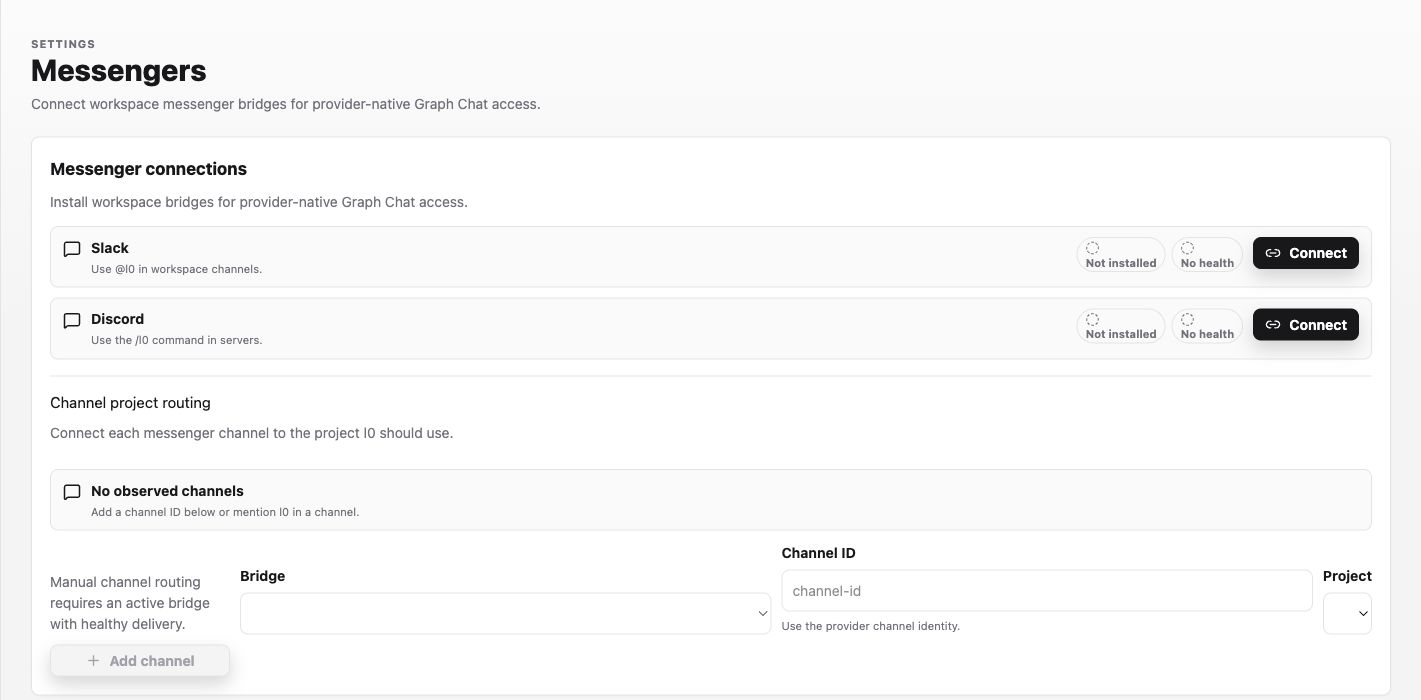
Open Settings > Integrations > Messengers. Each bridge shows installation and health state separately. Channel project routing becomes available when the selected bridge installation is active. Delivery health is a separate warning and does not disable routing controls.
Procedure
- Select Connect beside Slack or Discord and complete the provider handoff.
- Return to Messengers and confirm the bridge no longer says Not installed. If health still says No health, Degraded, or Failed, treat that as a delivery warning rather than an installation failure.
- Mention the installed app in a Slack channel or use
/l0in Discord so Labor0 can observe the channel when required by the provider. - Under Channel project routing, choose Bridge, enter or select Channel ID, choose Project, and select Add channel.
- Link the provider actor to a Labor0 user when prompted, then start a Slack thread with
@l0 Summarize the project README; do not change files.or send the same low-risk request through Discord/l0.
Continue a Slack thread
Start every new Slack conversation by mentioning @l0. After Labor0 responds, a person can reply in that same public- or private-channel thread without repeating the mention.
If the reply also mentions another Slack user, app, or user group, or targets @channel, @here, or @everyone, include @l0 again. Edited, deleted, automated, and top-level messages without @l0 do not invoke Labor0. This continuation behavior applies to messages that Slack delivers to the bridge, so also check delivery health when an eligible reply receives no response.
Continue a Discord thread
Start a Discord conversation with /l0. After Labor0 creates and responds in its thread, a person can send another text or image message in that same thread without mentioning the bot. For example, reply List the remaining risks. to continue the same project Graph Chat session.
Without an explicit Labor0 bot mention, the reply must not mention another user or role and must not target everyone. Discord channel mentions are allowed. An explicit mention of the Labor0 bot invokes it even when the message also has other targets; Labor0 removes only its own mention from the request. Direct messages, parent-channel messages, and threads created by another user do not use implicit continuation.
Expected result
The active bridge allows channel routing, the channel appears under Channel project routing, and the test request opens project Graph Chat in the selected project. Once Labor0 has durably accepted an eligible Slack message or a Discord message in a Labor0-created thread, the source message keeps a 👀 reaction; the reaction is not removed when the reply finishes. Duplicate delivery does not add another visible reaction or another assistant request. Discord /l0 commands and approval buttons do not have a source-message reaction. A later eligible reply in the same Slack thread or Labor0-created Discord thread continues that conversation without another mention. If the routing controls remain disabled, finish or restore the bridge installation. A degraded, failed, or missing health report does not disable routing, but investigate that warning if the test request is not delivered.
Labor0 access boundary
Workspace Viewer and above may view source and connector state, run permitted read-only knowledge and data access, and view messenger bridge state. Workspace Operator and above may use explicitly read-write data bindings. Workspace Admin and above may create, change, archive, reconnect, or disconnect knowledge sources and connectors, and manage messenger installations and channel-to-project bindings.
Provider-side organization or account approval may still be required. Actor linking and project channel binding do not bypass Labor0 membership or project access.
If a bridge does not respond
Symptom: a channel gets no useful response. Likely cause: the actor is not linked, the channel is unbound, the installation lacks the needed provider capability, or the bridge is paused. Safe recovery: inspect the app’s redacted status and fix one binding at a time.