
MCP clients and L0 Tools
Beta: Labor0 MCP, L0 Nexus, and L0 Tools client connections are available for evaluation and may change as endpoint capabilities evolve.
Connect a supported MCP client to the public Labor0 endpoint with WorkOS OAuth or a user API key. L0 Nexus and L0 Tools use their separate workspace endpoints and values copied from the authenticated app.
Before you begin
Choose the endpoint family and client. The public Labor0 endpoint requires a Labor0 account and either an OAuth-capable MCP client or a user API key with Labor0 API access. A workspace endpoint requires permission to create a user token and a client that can read an environment variable instead of storing a secret in a checked-in file.
Choose the endpoint family
Use the exact public URL above for Labor0 MCP. For a workspace endpoint, do not copy a value from a screenshot or another workspace; use Copy beside the exact endpoint and client snippet shown in your authenticated app.
Connect to Labor0 MCP with WorkOS OAuth
Add the public endpoint to Codex, start OAuth sign-in, and confirm the connection:
The login command opens the Labor0 WorkOS sign-in flow in your browser. Sign in to the intended Labor0 account, approve the requested access, and return to the terminal. This OAuth flow does not require creating or pasting a bearer token.
As a privacy-safe discovery check, ask Codex to list the Labor0 workspaces you can access. The result should contain only workspaces visible to the signed-in account.
Connect to Labor0 MCP with a user API key
Open the authenticated Labor0 app and select Settings > Runtime > Access tokens. Create a user key with Labor0 API access, copy it once into a local secret manager, and configure the client through an environment variable:
The key must be owned by a user and include the labor0:api permission. Organization keys and keys without that permission are rejected. Never put the key directly in client configuration, source control, prompts, screenshots, or support messages.
To confirm that the key is accepted, ask Codex to list the Labor0 workspaces you can access. The result should contain only workspaces visible to the key owner.
Labor0 MCP tools
Every input is a closed object: fields not shown below are rejected. IDs are the lowercase Labor0 IDs returned by discovery tools, and page_token values are opaque.
task_statuses accepts only queued, graph_pending, ready, running, blocked_on_user, paused, retired, failed, completed, and canceled.
For task.remove, choose remove_all to remove the selected task and every downstream task. Choose unblock_as_succeeded to remove only the selected task and let its downstream tasks proceed as though it succeeded. The second choice can immediately start newly ready work, so use it only when that execution is intended.
For graph_update.review, send exactly one of these action objects:
- Approve:
{"type":"approve"} - Request changes:
{"type":"request_changes","request_text":"<requested changes>","idempotency_key":"<UUID v7>"} - Retry changes:
{"type":"retry_changes","change_request_id":"<change request ID>","idempotency_key":"<UUID v7>"} - Discard:
{"type":"discard"}
idempotency_key values must be UUID v7. If work.submit times out or reports an unavailable result before returning IDs, replay the exact same workspace_id, project_id, prompt, and idempotency_key; do not create a new key. After you have the prompt_batch_id and prompt_submission_id, use work.get_submission for authoritative status. Reuse the same key for a change request only when replaying that exact request after an uncertain result.
For example, first call scope.list_workspaces, then scope.list_projects with the selected workspace_id. Submit a privacy-safe prompt with work.submit, retain the returned batch and submission IDs, and use work.get_submission until is_pending is false. Submission is asynchronous; a successful work.submit response does not mean the task has finished.
For graph review, always call graph_update.get immediately before graph_update.review and send the displayed preview revision and graph-head sequence unchanged. If Labor0 reports a conflict, reload the preview and review the new proposal instead of replaying the old decision.
Permissions and results
- Viewers can use permitted discovery and read tools but cannot submit, remove, review, or retry work.
- Operators and Admins can use those mutations when the current project capabilities permit them.
- Inherited permissions and membership changes take effect on later calls. A previously discovered ID does not preserve access after removal or demotion.
Lists contain at most 25 rows. Pass next_page_token back only to the same tool and scope; an empty token means the page is complete. Task and activity results preserve the service’s authoritative ordering.
task.get can return partial: true only when supplemental task detail is temporarily unavailable or times out. Its warning names the missing section. Authorization and not-found failures do not become partial success.
Errors include a safe request ID and a stable code such as invalid_argument, permission_denied, not_found, conflict, failed_precondition, unavailable, or deadline_exceeded. Retry read calls after temporary failures. Mutations are attempted once. If work.submit returns no IDs after a timeout or unavailable result, use the exact-request replay described above. For task removal, graph review, or task retry, reload the matching task detail or graph preview before deciding whether another mutation is safe.
Connect to a workspace endpoint with a bearer token
Create the token
Open Settings > Runtime > Tokens. Select Create token, give it a narrow purpose such as Local Codex MCP, and copy the secret into a local secret manager immediately. The token value is shown only through the protected creation flow.
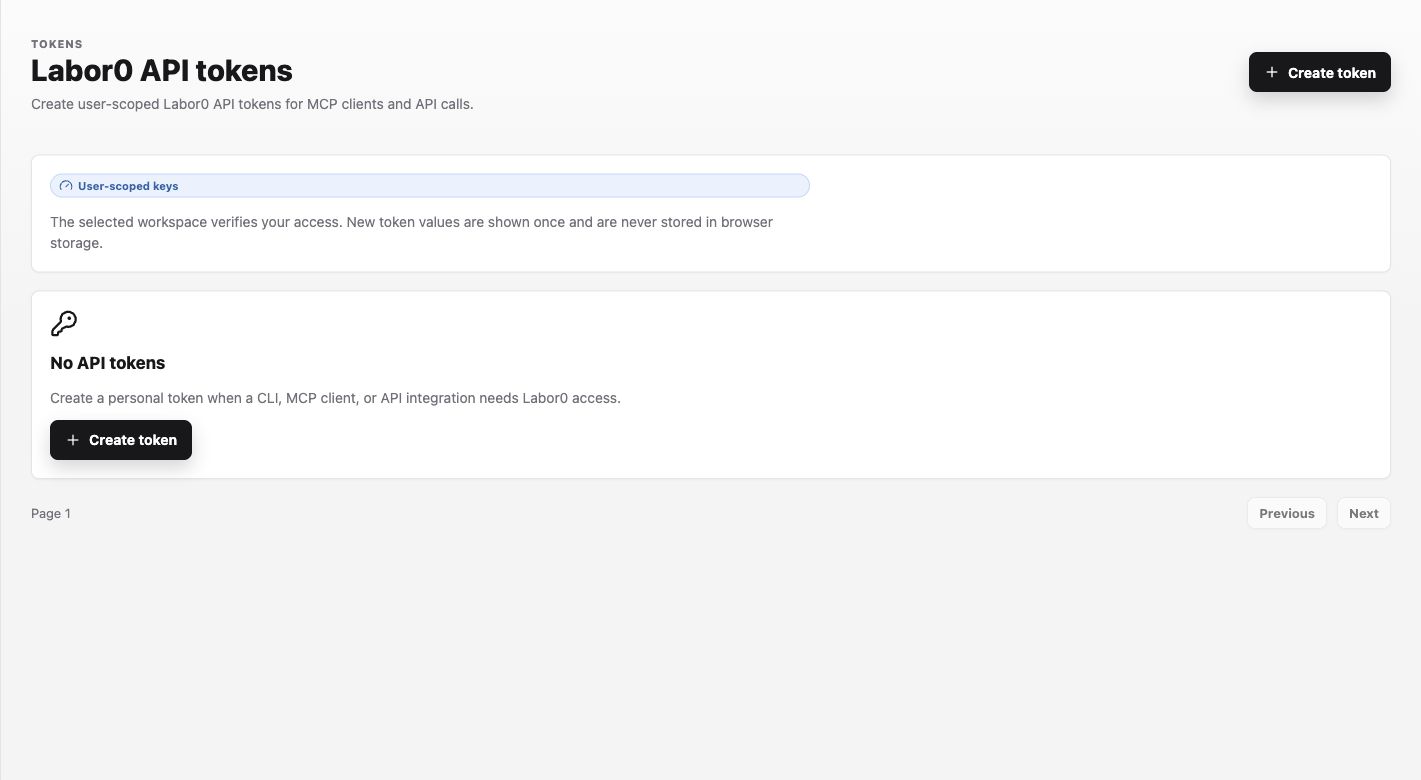
Procedure
- Create the token from Runtime > Tokens and export it through an environment variable such as
LABOR0_TOKEN. - Open L0 Nexus > Endpoint or L0 Tools > Connection guide.
- Confirm the page shows Bearer token, then use the Copy action for the intended endpoint.
- Under Client setup, copy the snippet for Claude Code, Codex, or OpenCode. Keep the environment-variable reference and replace no placeholder with a literal token in source control.
- Run the client’s list command and perform a harmless discovery request before granting the endpoint to an automated workflow.
Supported client guidance may include Claude Code, Codex, OpenCode, L0 Nexus, and L0 Tools. Use the current snippet from the app because endpoint and client settings can change.
Codex and L0 Nexus bearer authentication
Until the runtime supports Codex OAuth client registration, configure a workspace MCP endpoint with the bearer-token environment-variable pattern:
Use the exact endpoint from the authenticated app. Do not use codex mcp login unless the app explicitly provides an OAuth-based snippet for that runtime.
Expected result
For the public endpoint, codex mcp list shows labor0 and https://mcp.labor0.com/mcp, and the client can discover the twelve tools after OAuth sign-in or user API-key authentication. For a workspace endpoint, the command shows the configured server and remote URL without printing the token value. An L0 Nexus endpoint exposes knowledge and data-query tools; an L0 Tools surface exposes apply_instruction for that artifact type.
A successful setup does not grant access beyond the signed-in account or token owner’s current permissions. Each tool checks the requested workspace and project again before returning data or accepting a change.
Labor0 does not return credentials, authorization headers, submitted prompt text, raw graph drafts, repository content, or provider diagnostics through these tools. Avoid placing secrets in prompts or review text, and send only the minimum content required for the task.
Permission guidance
OAuth and user API-key access follow the current permissions of the authenticated user. Token creation, rotation, revocation, endpoint inspection, and connector setup are authenticated workspace actions. A token should have no broader use than its owner needs.
If the client cannot connect
Public endpoint symptom: Codex reports that OAuth is required or the Labor0 server is unauthorized. Likely cause: sign-in was not completed, the wrong Labor0 account was used, or account permissions changed. Safe recovery: run codex mcp login labor0 again, complete sign-in with the intended account, and retry the discovery check.
User API-key symptom: the public endpoint reports unauthorized. Likely cause: the environment variable is missing, the key was revoked, the key is not user-owned, or it lacks Labor0 API access. Safe recovery: confirm the environment-variable name without printing its value, then create or rotate a narrowly scoped user key and retry workspace discovery.
Mutation symptom: a submission, task removal, review, or retry reports a timeout or unavailable result. Likely cause: the result is ambiguous even though the connection ended. Safe recovery: if work.submit returned no IDs, replay the exact same workspace, project, prompt, and UUID-v7 idempotency key. For task removal, review, or retry, reload task detail or the current graph preview and act from that authoritative result before making another mutation.
Workspace endpoint symptom: the client reports an authorization or endpoint error. Likely cause: the token is expired, the endpoint is copied incorrectly, or the workspace permission changed. Safe recovery: rotate or recopy values from the app and retry once; revoke a token that may have been exposed.